
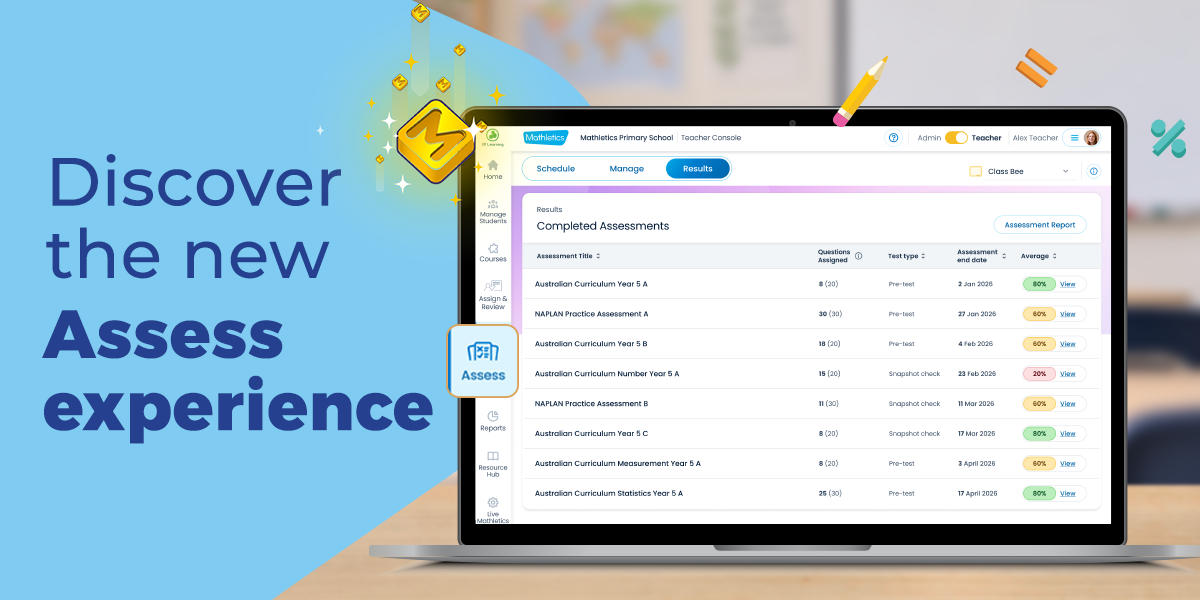
You asked, and we listened. Assess is the new, dedicated assessment area in Mathletics, bringing together the tools to find, preview, assign and manage assessments, understand results and act on learning gaps.
It grew entirely out of conversations with teachers about what they needed from assessments: a way to review questions before assigning them, keep track of what was active or completed, and reassign the same assessment to see how students had progressed after further teaching or practice.
In the Assess area, teachers can assign assessments to individuals, groups or a whole a class. Grade levels appear in the teacher-facing titles but are hidden from students, helping teachers choose assessments suited to each student’s learning needs without drawing attention to the level.
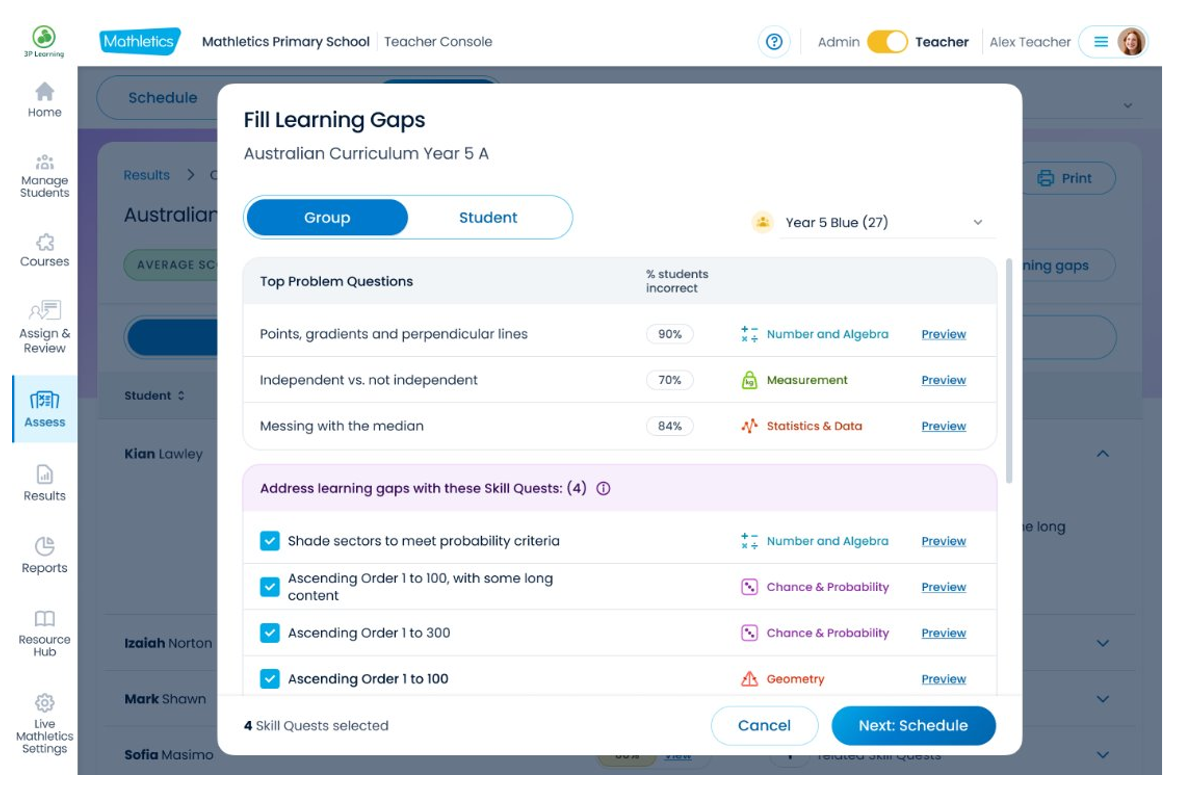
Assess connects checking understanding with what comes next. Automatically marked results help teachers identify learning needs, while Fill Learning Gaps recommends relevant content that teachers can preview and assign for targeted practice.
It also marks an important step for Mathletics: from a program focused on learning and practice to one that brings learning and assessment together.
This is the first of three articles on Assess, and the next dives deeper into how it works.
How does Assess work
One clear destination for assessments
Find, preview, assign, reassign and manage assessments from a single area. See active and completed assessments for your class at a glance, and move easily between Schedule, Manage and Results.
See more than a score
Automatically marked results show performance by student and by question, helping you spot individual needs and the concepts your class found hardest.
Turn learning gaps into next steps
Mathletics identifies learning gaps from assessment results and recommends relevant Skill Quests. Preview the recommendations and choose what to assign, to individuals, groups or the whole class.
Reassign to review progress
Reassign the same assessment after further teaching or practice. Each attempt is saved separately, so you can review earlier and later results to see how understanding has changed.
Curriculum-aligned assessment reporting
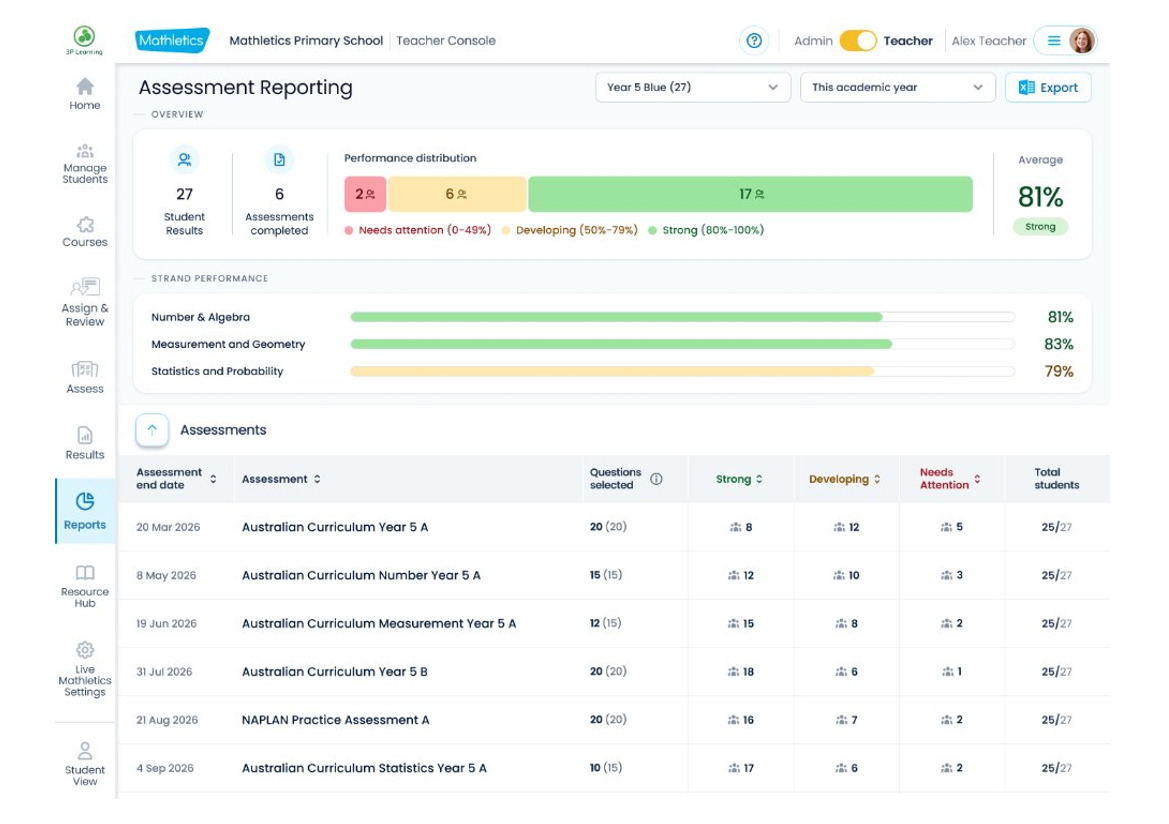
Review assessment performance by curriculum strand, student and question. Use the Assessment report to review results across the academic year.
Assess Q&A: a quick tour of the new area
Where do I find Assess?
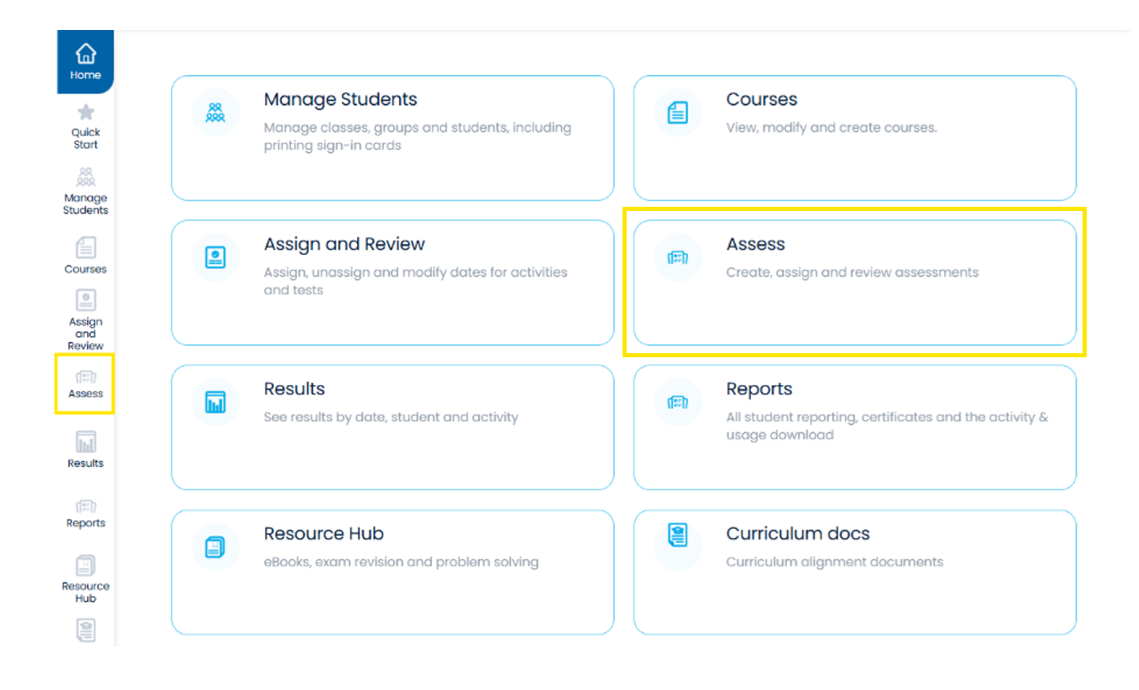
Once you’ve signed in to Mathletics, click the Assess tile or select Assess from the left-hand menu in your Teacher Console. Assess is organised into three tabs – Schedule, Manage and Results – plus its own report under Reports.
How do I find, preview, print and assign an assessment?
Start in Schedule and select your class. You can search by title or filter by curriculum and grade level. Preview the questions before you assign, and print them if you’d like a paper copy. When you’re ready, choose a whole class, group or individual then set the dates and assessment options. You can also pick which questions to include and shuffle their order.
How do I keep track of what’s been assigned?
Manage shows the status, dates and student completion for your class’s assessments. You can manage existing assignments, end an assessment early or reassign a completed assessment. Each attempt is saved separately.
Where do I see how my students went?
In Results. Each completed assessment shows its average score, and you can look at results by student or by question. Open a student to see how they went question by question. Fill Learning Gaps is here too, recommending Skill Quests you can assign straight away.
See Assess in action
Already using Mathletics? Sign in to Mathletics and open Assess from your Teacher Console to explore it. If you’d like a guided look, book a demonstration with your Mathletics representative.
New to Mathletics? Schedule a 1:1 demo to see Mathletics and Assess in action.